
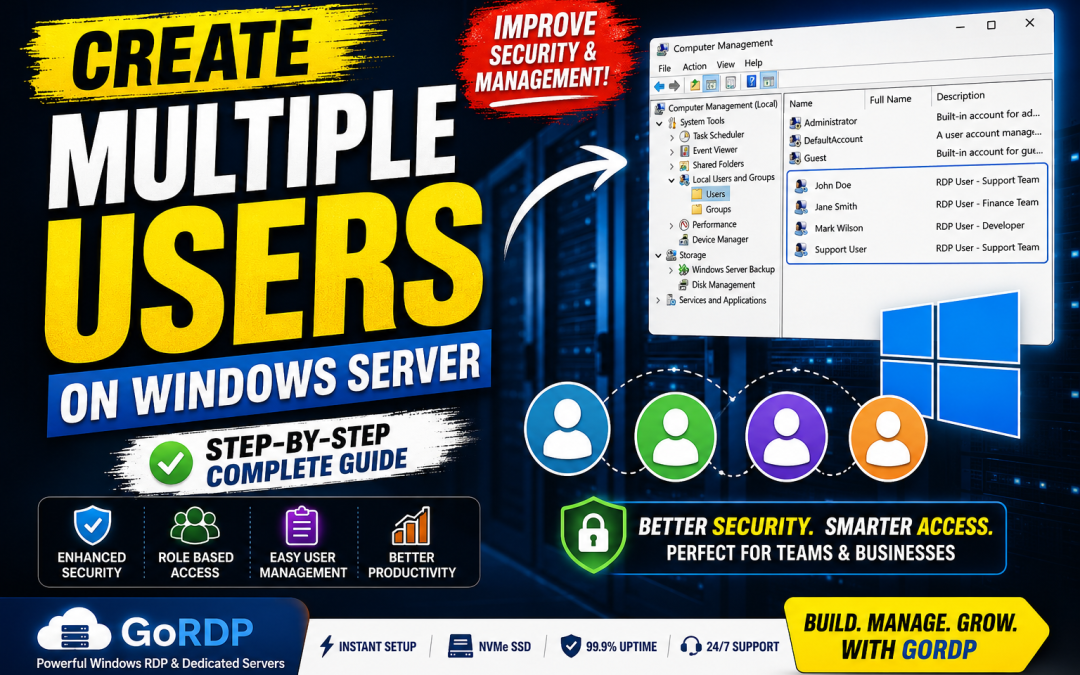
Managing multiple users on a Windows Server is essential for businesses, development teams, customer support, and organizations that need secure remote access for multiple employees. Instead of sharing a single administrator account, Windows Server allows you to create individual user accounts with customized permissions, improving both security and management.
In this guide, we’ll show you how to create multiple users on a Windows Server and share best practices for managing them efficiently.
Why Create Multiple User Accounts?
Creating separate user accounts offers several advantages:
- Improved security by avoiding shared credentials
- Individual permissions for each employee or team member
- Easier auditing and activity tracking
- Better compliance with organizational security policies
- Simplified password management
- Reduced risk of accidental configuration changes
Whether you’re running a small business or managing a large organization, assigning each user their own account is considered a security best practice.
Prerequisites
Before creating additional users, make sure you have:
- Administrator access to your Windows Server
- Remote Desktop (RDP) access
- A Windows Server edition that supports multiple users (depending on licensing requirements)
- A stable internet connection
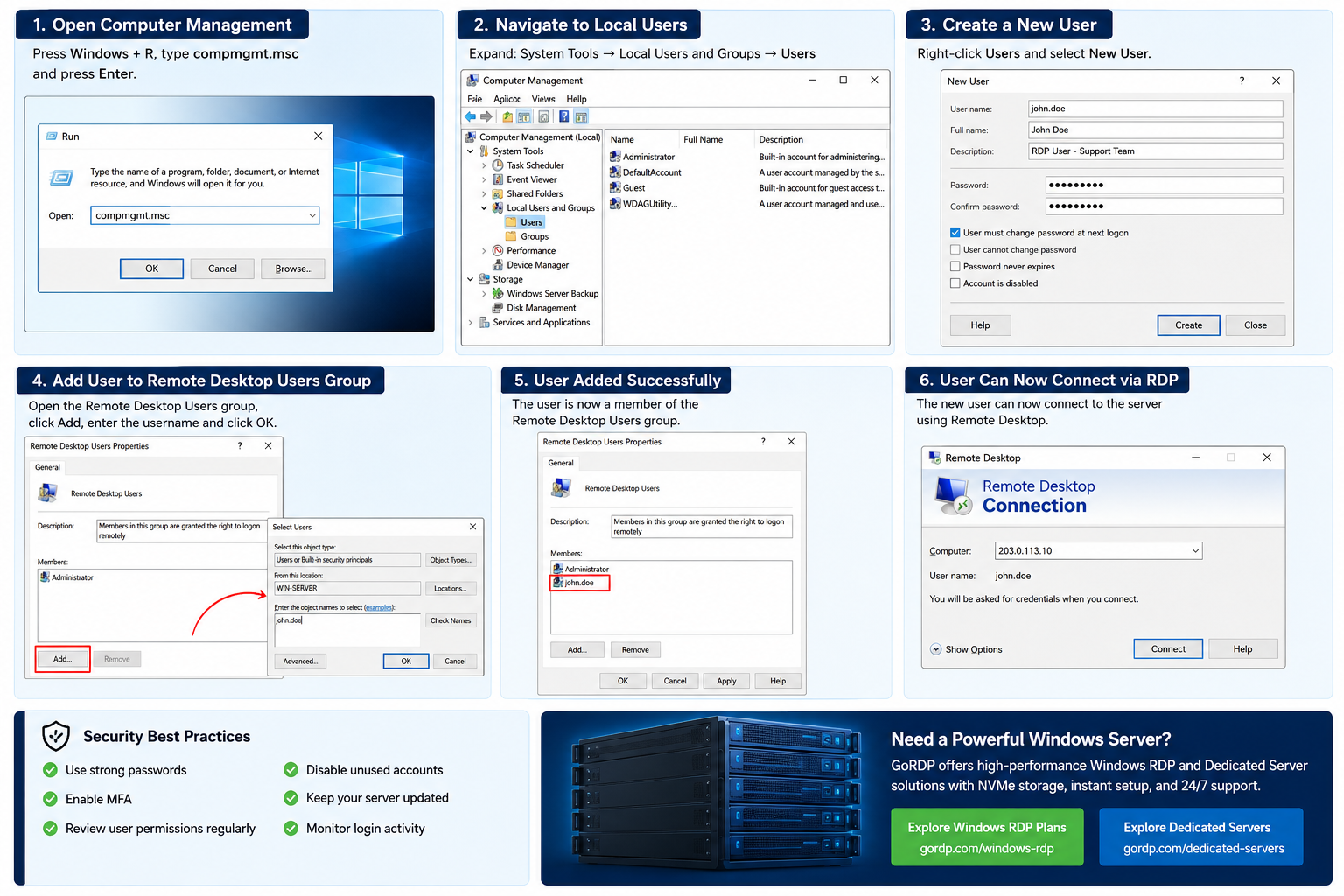
Step 1: Open Computer Management
- Log in to your Windows Server using an administrator account.
- Press Windows + R.
- Type:
compmgmt.msc- Press Enter.
Step 2: Navigate to Local Users
Expand:
System Tools → Local Users and Groups → Users
Here you’ll find all existing user accounts.
Step 3: Create a New User
Right-click Users and select:
New User
Fill in the following information:
- Username
- Full Name
- Description (optional)
- Password
Choose the appropriate password options:
- User must change password at next logon
- User cannot change password
- Password never expires (only if appropriate)
- Account is disabled (leave unchecked unless needed)
Click Create.
Repeat these steps for each additional user.
Step 4: Add Users to the Remote Desktop Users Group
Creating a user account alone does not grant Remote Desktop access.
To allow users to connect:
- Open Computer Management
- Navigate to:
Local Users and Groups → Groups
- Open:
Remote Desktop Users
- Click Add
- Enter the username
- Click Check Names
- Click OK
The new user can now connect using Remote Desktop.
Step 5: Assign Administrator Rights (Optional)
If a user needs administrative privileges:
- Open the Administrators group.
- Click Add.
- Select the user.
- Save the changes.
Only grant administrator permissions when necessary.
Managing User Permissions
Instead of giving every user full administrator access, assign permissions based on their responsibilities.
For example:
- Developers may require software installation privileges.
- Support agents only need application access.
- Accountants may only require access to financial software.
- Managers may need access to reports without server configuration permissions.
Using the principle of least privilege significantly improves server security.
Security Best Practices
When managing multiple users on a Windows Server:
- Use strong, unique passwords.
- Enable Multi-Factor Authentication (MFA) whenever possible.
- Disable unused accounts immediately.
- Regularly review user permissions.
- Avoid sharing administrator credentials.
- Keep Windows Server updated with the latest security patches.
- Monitor login activity for suspicious access attempts.
These practices help reduce the risk of unauthorized access and maintain a secure server environment.
Common Issues
User Cannot Connect via Remote Desktop
Verify that:
- The account is enabled.
- The user belongs to the Remote Desktop Users group.
- Remote Desktop is enabled on the server.
- Firewall rules allow RDP connections.
Login Failed
Check:
- Username and password accuracy.
- Account lockout status.
- Password expiration settings.
Access Denied
Review the user’s group memberships and ensure they have the necessary permissions for the required applications or folders.
Need a Reliable Windows Server?
Managing multiple users starts with having a stable and high-performance Windows Server. If you’re looking for instant deployment, NVMe storage, reliable uptime, and enterprise-grade performance, GoRDP offers Windows RDP and dedicated server solutions designed for businesses, developers, and remote teams.
Whether you need a server for a few users or a larger deployment for your organization, GoRDP provides scalable plans to match your requirements.
👉 Browse Windows RDP Plans: https://gordp.com/windows-rdp
👉 Explore Dedicated Servers: https://gordp.com/dedicated-servers
Final Thoughts
Creating multiple user accounts on a Windows Server is one of the simplest ways to improve security, organization, and collaboration. By assigning individual accounts and appropriate permissions, you can protect sensitive data, simplify administration, and provide each user with the access they need.
As your team grows, a reliable Windows Server becomes even more important. Choosing a dependable hosting provider ensures consistent performance, secure remote access, and the flexibility to scale alongside your business.