


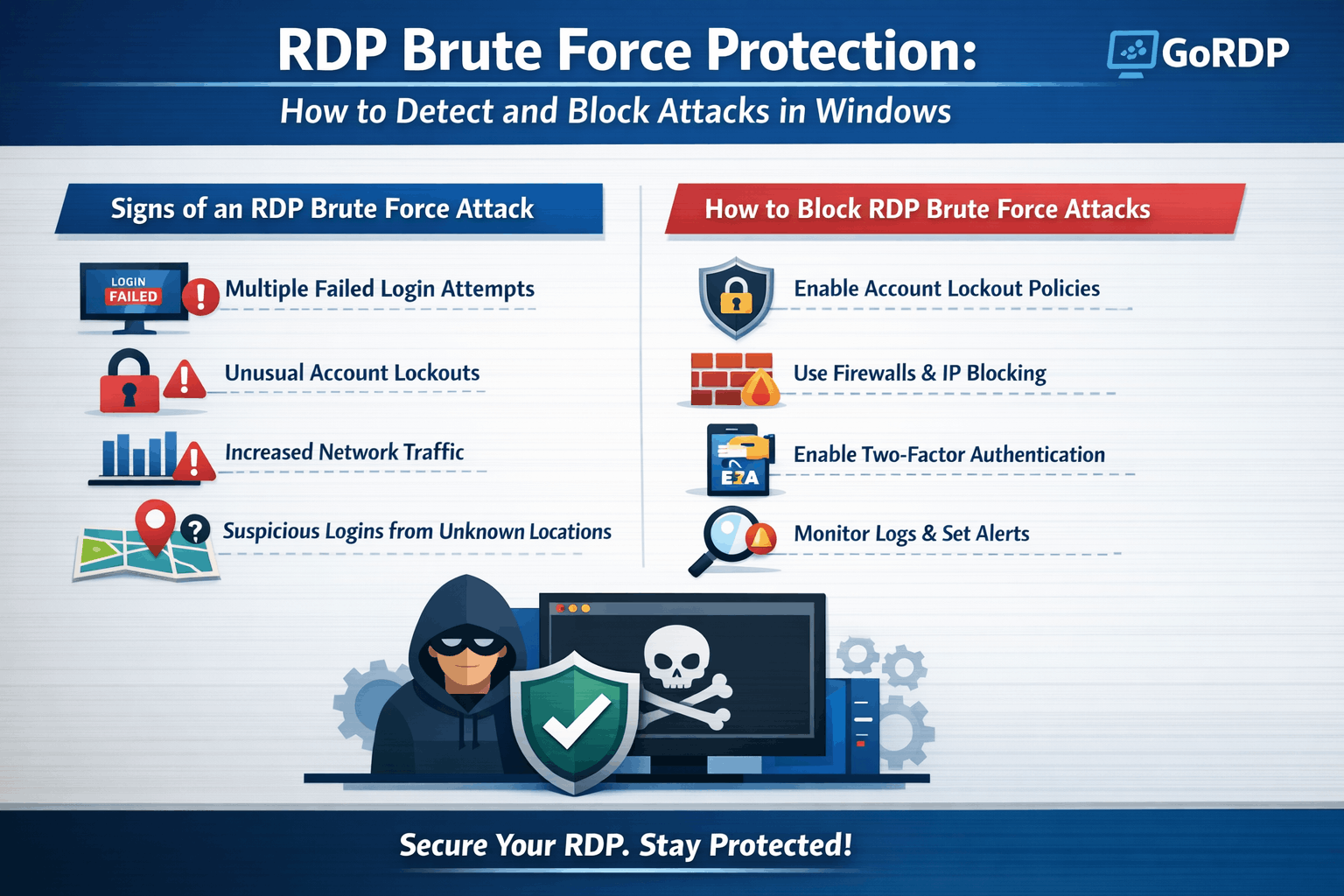
RDP brute force protection: how to detect and block attacks
RDP brute force protection is essential because RDP brute-force attacks remain one of the most common entry points for ransomware and full server takeovers. With a few practical steps, you can detect these attacks quickly and automatically lock out attackers before they guess a valid password.
What is an RDP brute-force attack?
A brute-force attack against Remote Desktop Protocol (RDP) is a high‑volume series of login attempts where attackers cycle through usernames and passwords until one works. These attacks usually target exposed RDP services on port 3389 and run 24/7 from large botnets or compromised hosts.
Key characteristics of poor RDP brute force protection:
-
Very high number of failed RDP logins in a short period.
-
Attempts from many IPs or from a single IP that keeps trying different usernames.
-
Use of generic or local admin names like “administrator”, “admin”, or common first names.
How to detect RDP brute-force attacks in logs
On Windows, RDP brute-force detection starts in the Security and RemoteDesktopServices logs. Correlating failed and successful events shows whether attackers actually broke in and whether your RDP brute force protection is working.image.jpg
Core event IDs to monitor:
-
4625 (Security log): Failed logon attempts; repeated 4625 events for logon type 3 or 10 from the same IP and username pattern are a strong brute-force indicator.
-
4624 (Security log): Successful logons; a 4624 following a burst of 4625 from the same IP or username can indicate a compromise.
-
1149, 21, 22, 24 (RemoteDesktopServices logs): RDP authentication and session lifecycle events that help tie activity to specific sessions and IP addresses.
Practical detection tips for better RDP brute force protection:
-
Create a custom view or SIEM rule that triggers when more than X failed 4625 events occur from one IP or account in Y minutes.
-
Alert on a successful 4624 RDP logon that immediately follows a threshold of 4625 failures from the same source.microsoft+1
-
Include username, source IP, and timestamp fields in alerts so incident responders can act quickly.
Using account lockout policies to slow attackers
Account lockout policies make brute-force attacks noisy and time‑consuming instead of silent and unlimited. This is a core part of RDP brute force protection because accounts are temporarily locked after a small number of bad password attempts, forcing attackers to wait or switch targets.
Recommended lockout guidelines (adjust for your environment):
-
Lockout threshold: 5 failed attempts before lockout.
-
Lockout duration: 15–30 minutes to slow attackers without causing long outages for staff.
-
Reset window: 15–30 minutes so occasional user mistakes do not constantly trigger lockouts.
On Windows, you can configure this through Group Policy or net accounts:
-
Group Policy: Computer Configuration → Windows Settings → Security Settings → Account Policies → Account Lockout Policy.
-
Example command:
net accounts /lockoutthreshold:5 /lockoutduration:30 /lockoutwindow:30to apply a basic lockout profile.
Pair lockout policies with monitoring so frequent lockouts trigger investigations rather than being silently ignored.
Buy Cheap Australia VPS – $17.99/m
Blocking RDP brute-force attacks with firewall rules
Firewall rules add another layer of RDP brute force protection by cutting off hostile IPs or restricting RDP to trusted networks only. Combining host‑based firewall rules with perimeter firewalls or VPNs greatly reduces the attack surface.
Effective firewall strategies:
-
Restrict RDP to specific IP ranges (for example, office or VPN subnets) instead of allowing “any” on port 3389.
-
Use a VPN or RDP gateway and avoid exposing raw RDP directly to the internet whenever possible.
-
Automatically block IPs that exceed a failed login threshold by adding them to a Windows Defender Firewall rule.
Automated blocking example:
-
A PowerShell script can parse Security logs for Event ID 4625 and count failed RDP logons per IP within a time window.
-
When an IP exceeds a threshold (for example, 5–10 failures in 3 hours), the script adds that IP to a firewall rule that blocks RDP traffic from that address.
-
The script can log blocked IPs for reporting and later review.
If you use third‑party endpoint or firewall products, many have built‑in options to automatically block RDP port 3389 when brute-force patterns are detected.
Alerts, monitoring, and layered RDP security
Detection and blocking work best when tied into alerting and layered hardening, not as isolated tweaks. Security teams need immediate visibility into attack spikes and suspicious successful logons to maintain strong RDP brute force protection.
Strong practices for ongoing protection:
-
Send key RDP events (4624, 4625, 1149, 21, 22, 24) to a SIEM or log management platform and build alerts for brute-force patterns and unusual locations.
-
Use EDR or security platforms that provide brute-force alerts and automated responses such as IP blocking, account disabling, or step‑up MFA challenges.
-
Harden RDP itself: enforce Network Level Authentication (NLA), strong passwords, and multi‑factor authentication, and avoid using default or shared admin accounts.
When combined, log monitoring, smart lockouts, firewall automation, and RDP hardening significantly reduce the risk that attackers will ever succeed with brute-force attempts.
RDP brute-force attacks (FAQ)
Q1. How can I tell if my server is under an RDP brute-force attack?
You will see a spike in failed RDP logins (Event ID 4625) often using common usernames and coming from the same or many rotating IP addresses within a short period.
Q2. What is a safe account lockout threshold for RDP?
Many environments start with 5 failed attempts, a 15–30 minute lockout, and a similar reset window, then tune these values based on user behavior and monitoring data.
Q3. Should I expose RDP directly to the internet?
Direct exposure of RDP is strongly discouraged; place RDP behind a VPN or gateway and restrict access by IP to reduce brute-force and scanning attacks.
Q4. Can firewall rules automatically block RDP brute-force attacks?
Yes, scripts and security tools can watch for repeated failed logins and automatically add the offending IPs to Windows Defender Firewall or network firewall block lists for better RDP brute force protection.