


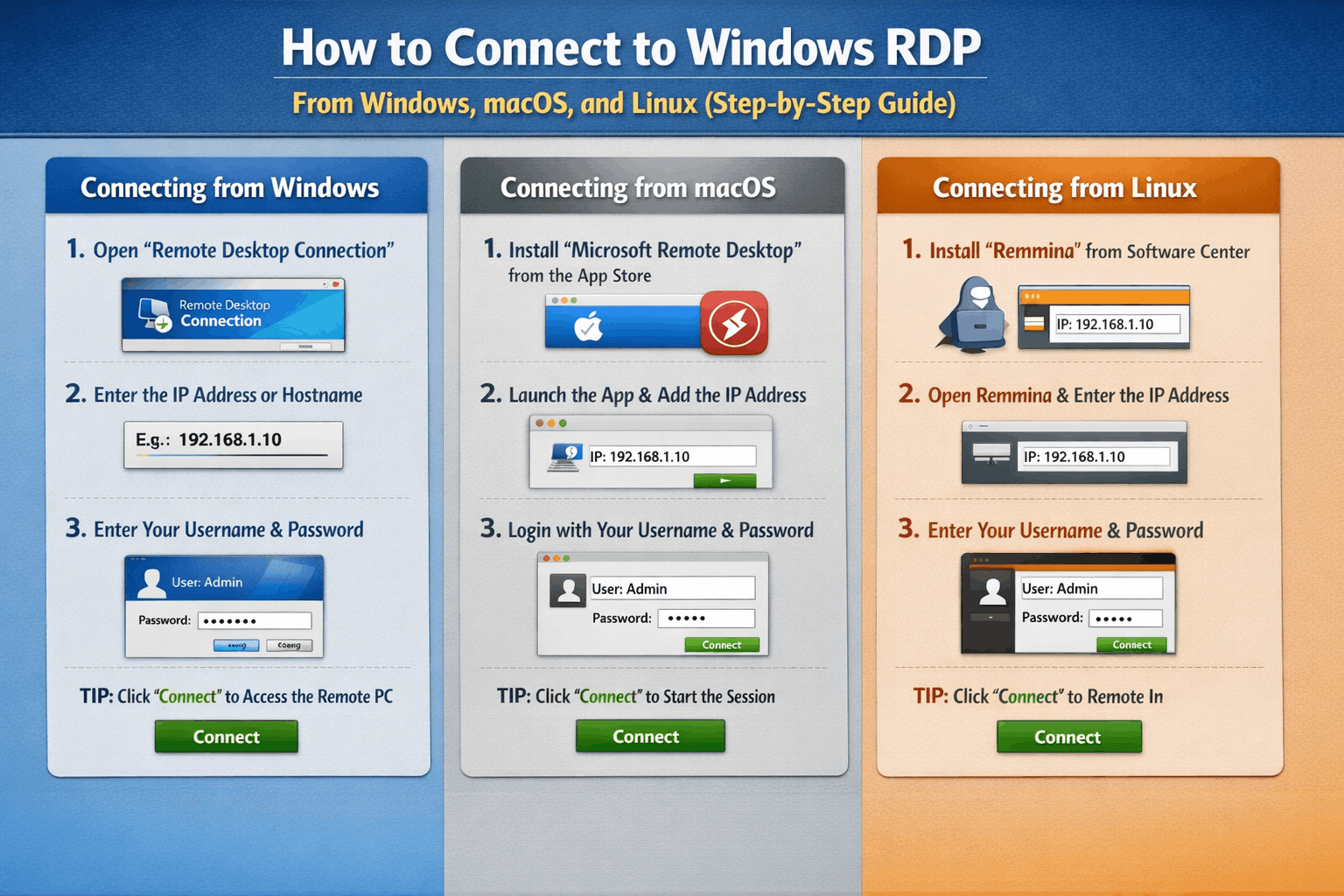
How to connect to Windows RDP from Windows, macOS, and Linux
Remote Desktop Protocol (RDP) lets you see and control a Windows PC or server from another device as if you were sitting in front of it.
This guide shows how to connect to Windows RDP from Windows, macOS, and Linux using free or built‑in clients, and assumes RDP is already enabled and reachable on the Windows machine.
Before you start on any platform, make sure you have:
-
The Windows computer’s IP address or hostname
-
A Windows username and password that has permission to use Remote Desktop
-
Network access to the machine (for example via VPN if RDP is not exposed publicly)
Connect to Windows RDP from Windows
On Windows, the default client is called Remote Desktop Connection (mstsc).
Steps:
-
Press Win + R, type
mstsc, and press Enter to open Remote Desktop Connection. -
In the Computer box, enter the IP address or hostname of the Windows PC or server you want to connect to.
-
Click Show Options if you want to save the username, change display resolution, or redirect clipboard / drives.
-
Click Connect, then enter your Windows username and password when prompted.
-
Accept any certificate warning if you trust the host, and you should see the remote Windows desktop.
For newer clients such as the Remote Desktop app for Windows, you can add a desktop profile, specify the PC name, and optionally configure an RD Gateway if your organization requires one.[learn.microsoft]
Connect to Windows RDP from macOS
On macOS, the easiest method is Microsoft’s free Microsoft Remote Desktop (sometimes called “Windows App”) from the Mac App Store.
Steps:
-
Open the Mac App Store, search for Microsoft Remote Desktop or Windows App, and install it.
-
Launch the app, then click + and choose Desktop to create a new connection.
-
In PC name, enter the IP address or hostname of the Windows computer.
-
Under User Account, either choose “Ask when required” or add your Windows username and password to save them.[learn.microsoft]
-
Adjust display or device‑redirect settings if needed, then click Add.
-
Double‑click the new desktop tile to connect, accept any certificate warning, and sign in if prompted.
If you connect over the internet or a corporate network, you may need to connect to a VPN first or use an RD Gateway address provided by your administrator.
Buy Cheap Singapore VPS – $18.99/m
Connect to Windows RDP from Linux
Most Linux distributions use Remmina or xfreerdp as common RDP clients.
Option 1 – Remmina (GUI client)
-
Install Remmina from your package manager (for example:
sudo apt install remmina remmina-plugin-rdpon Ubuntu). -
Open Remmina and click the + button to create a new connection profile.
-
Set Protocol to RDP – Remote Desktop Protocol.
-
Enter the Windows IP address or hostname in the Server field and give the profile a friendly name.
-
Fill in your Windows username and password, adjust resolution and color depth if needed, then click Save & Connect.
-
Accept any certificate prompt and you will see the remote Windows desktop.
Option 2 – xfreerdp (command line)
-
Install the FreeRDP package (for example:
sudo apt install freerdp2-x11). -
Run:
xfreerdp /u:<username> /p:<password> /v:<IP_or_hostname>
replacing the placeholders with your account and target machine details. -
If the connection succeeds, a full‑screen RDP window with the Windows desktop will appear.
Quick connection checklist (all platforms)
-
Confirm Remote Desktop is enabled on the Windows host and your user account has RDP permissions.
-
Ensure firewalls or security groups allow RDP traffic from your client (often TCP 3389 or a custom port).
-
If your organization requires VPN or RD Gateway, connect to those first before launching the RDP client.
-
For security, prefer strong passwords and, if available, multi‑factor authentication on the RDP endpoint.
How to Connect to Windows RDP from Windows, macOS, and Linux FAQs
1) Do I need to enable anything on Windows before using RDP?
Yes. Remote Desktop must be enabled on the Windows PC or server, and your user account must be allowed to connect via RDP.
2) Why can’t I connect, even though I typed the right IP and password?
Common causes are disabled Remote Desktop, blocked firewall ports, missing VPN, or trying to use an account without RDP permissions.
3) Is RDP from the internet safe?
Directly exposing RDP to the internet is risky; it is safer to use VPN, RD Gateway, or another secure access layer and avoid open RDP ports.
4) Which RDP client is best for Linux?
For most users, Remmina (GUI) is easiest, while xfreerdp is great for scripts and advanced options. Both support standard RDP connections to Windows.