
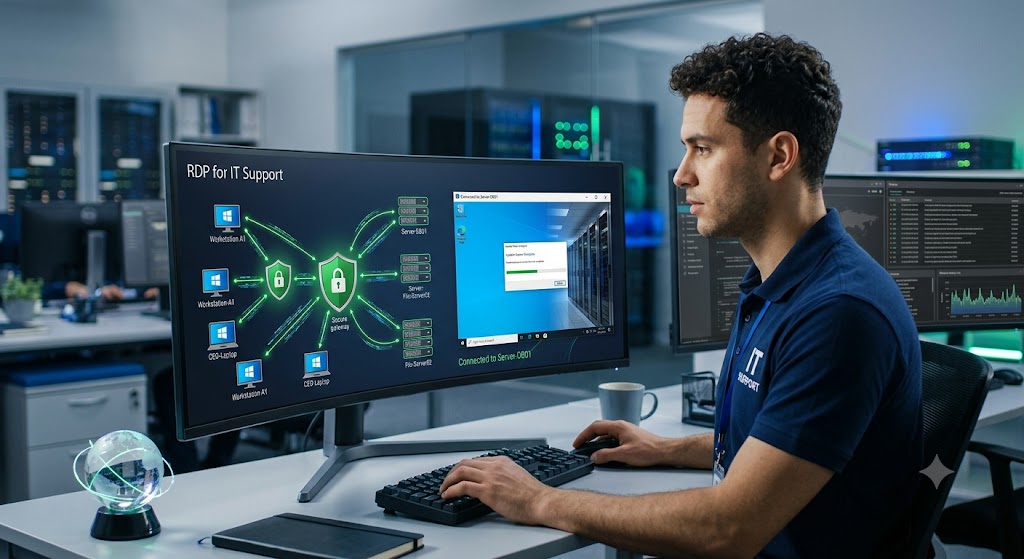
RDP for IT Support: Benefits and Best Practices
Remote IT support has become an essential part of modern business operations. Employees may work from different offices, home environments, or even different countries, while servers and business applications often need continuous technical maintenance. For IT teams, traveling to every computer or server whenever a problem occurs is inefficient, expensive, and time-consuming.
This is where RDP for IT Support becomes valuable.
Remote Desktop Protocol (RDP) allows authorized IT professionals to connect to a Windows computer or server remotely and interact with it as if they were sitting in front of the machine. IT support teams can use RDP to troubleshoot software problems, configure
Windows settings, install applications, manage servers, investigate performance issues, and perform routine maintenance without being physically present.
However, convenience also brings responsibility. Poorly secured remote access can expose systems to unauthorized access, credential attacks, malware, and other security threats. Therefore, organizations need to combine the convenience of remote desktop access with strong RDP security practices.
In this guide, you will learn what RDP is, how it is used for IT support, its major business benefits, common security risks, RDP best practices, performance tips, and situations where another remote-support solution may be more appropriate.
What Is RDP?
What Is RDP? Remote Desktop Protocol Explained
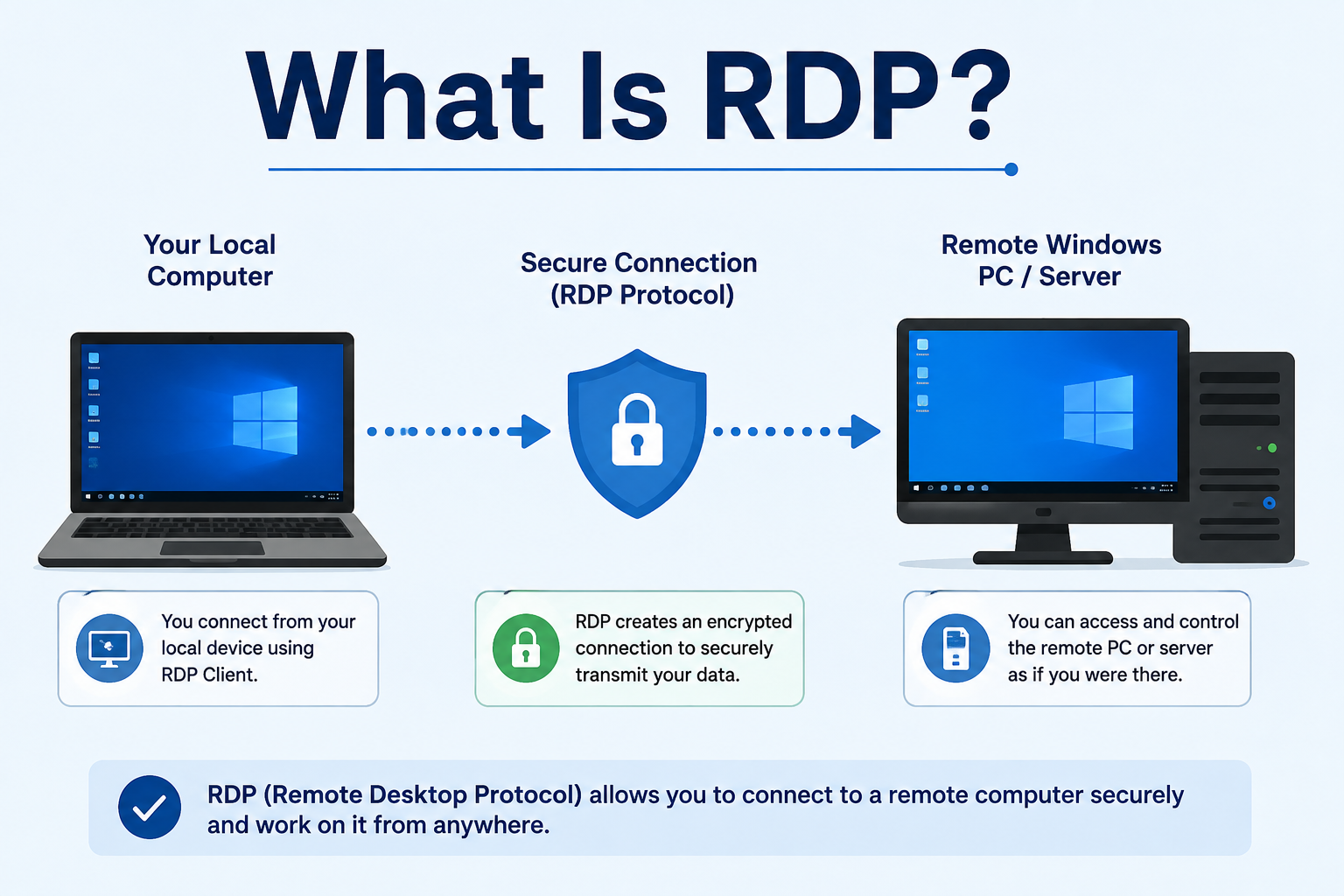
RDP, or Remote Desktop Protocol, is a network protocol developed by Microsoft that enables authorized users to remotely connect to and interact with Windows computers and servers.
In simple terms, RDP allows you to operate a remote Windows machine from another device. The remote computer runs the applications and processes, while your local device displays the remote desktop and sends your keyboard and mouse input to it.
For example, imagine an employee reports that a business application is not working correctly. Instead of asking the employee to bring their computer to the IT department, an authorized support professional can establish a remote desktop connection, inspect the system, identify the problem, and potentially fix it remotely.
An RDP connection generally involves two systems:
- Local computer: The device used by the IT professional to initiate the connection.
- Remote computer: The Windows PC or server being accessed.
After authentication and connection, the support professional can interact with the remote Windows environment according to the permissions assigned to their account.
RDP is commonly used for:
- Remote IT support
- Windows server administration
- Application installation and maintenance
- System configuration
- Troubleshooting
- Remote employee assistance
- Routine server management
- Accessing business applications hosted on Windows systems
RDP should not be confused with simply sharing a screen. Depending on the configuration, RDP provides an interactive remote Windows session that allows an authorized administrator or support professional to perform administrative and technical tasks.
How Is RDP Used for IT Support?
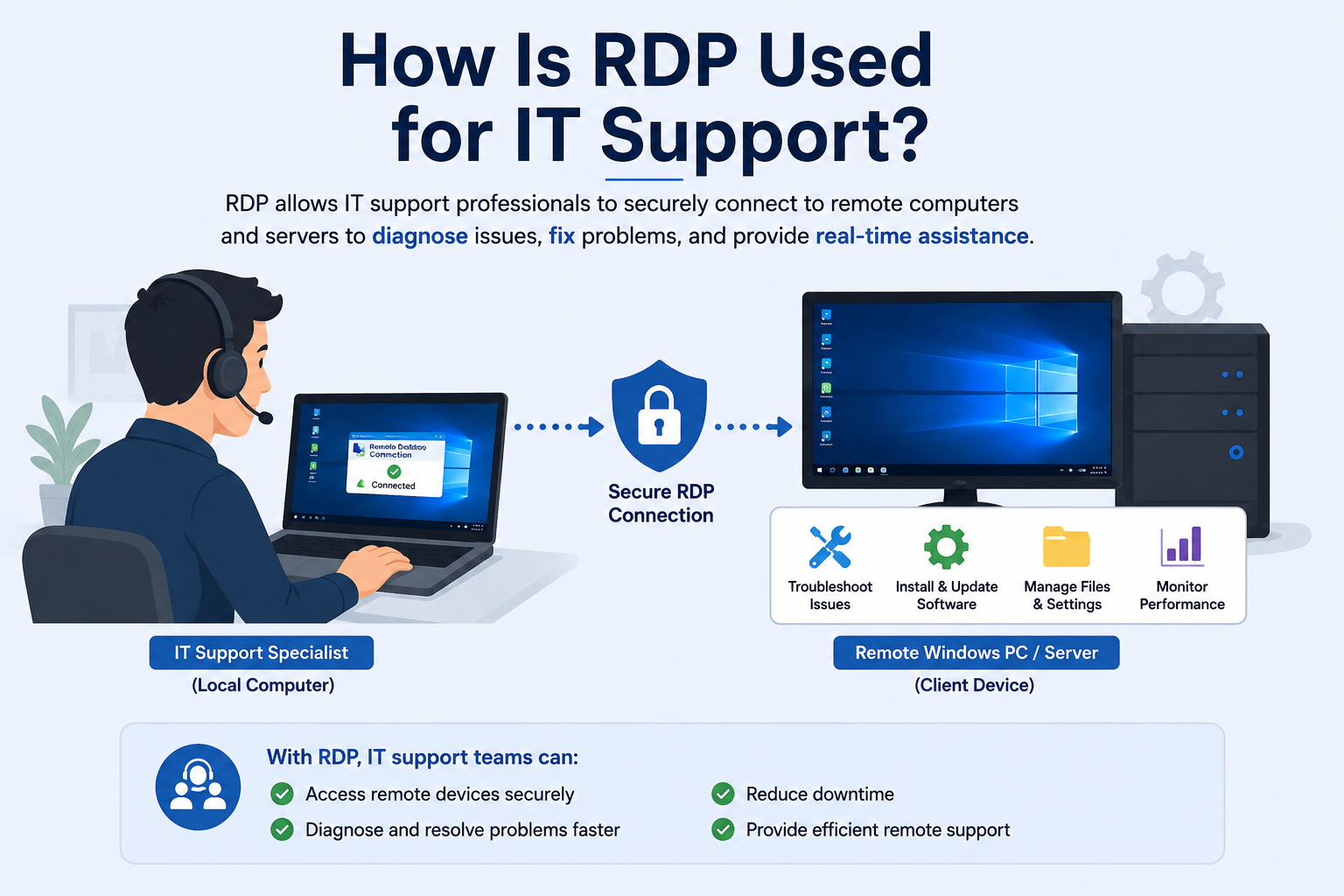
RDP can support many day-to-day IT operations. Instead of providing instructions to a user over the phone or asking them to perform complicated troubleshooting steps, an IT professional can often investigate the issue directly.
Troubleshooting Software Problems
Applications may fail because of incorrect settings, missing components, compatibility problems, or configuration errors. With authorized RDP access, an IT technician can inspect the application, review relevant settings, check system resources, and troubleshoot the problem remotely.
Installing and Updating Applications
IT teams can use remote access to install approved software, apply updates, configure applications, and verify that they are working correctly.
This is particularly useful when employees are working remotely and cannot easily bring their devices to an IT department.
Configuring Windows Settings
RDP can allow support teams to remotely configure Windows settings, manage services, review system configuration, and perform other administrative tasks according to their permissions.
Managing Servers
One of the most common applications of RDP is remote server management. System administrators can use it to manage Windows servers, perform maintenance, review system status, configure applications, and troubleshoot problems.
Checking System Performance
When a computer becomes slow, an IT professional can remotely inspect CPU, memory, storage, running applications, and other system resources. This can help identify performance bottlenecks without requiring physical access.
Supporting Remote Employees
Remote employees may experience technical problems outside normal office locations. RDP can give authorized IT personnel a practical way to investigate issues while allowing employees to continue working.
Performing Routine Maintenance
IT teams can also use remote access for routine activities such as software updates, configuration checks, system maintenance, and administrative tasks.
The important point is that RDP is a tool for authorized remote administration and support. It should be used within an organization’s access-control and security policies.
Benefits of RDP for IT Support
1. Faster Troubleshooting
One of the biggest advantages of RDP is speed.
Without remote access, an IT technician may need to explain troubleshooting steps over the phone, wait for screenshots, or physically visit the affected computer. RDP can allow an authorized technician to inspect the system directly.
Faster troubleshooting can reduce the time employees spend waiting for technical assistance and help IT teams resolve problems more efficiently.
2. Remote Access From Almost Anywhere
RDP can make technical support more flexible. IT professionals do not necessarily need to be physically located in the same office as the computer or server they are supporting.
This is particularly useful for organizations with:
- Multiple offices
- Remote employees
- Distributed IT teams
- Branch locations
- Remote Windows servers
However, remote access should always be implemented through appropriate security controls rather than exposing systems unnecessarily.
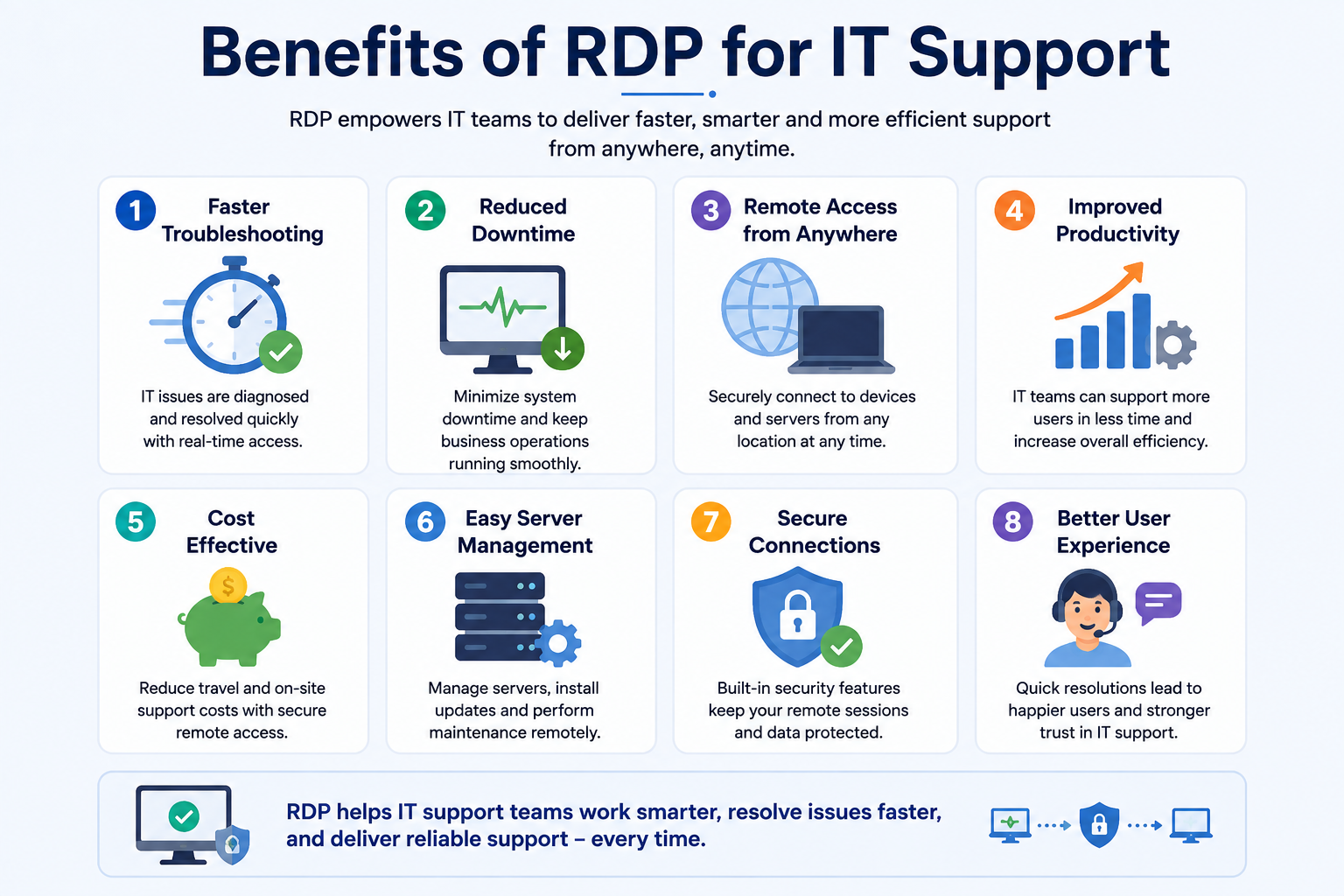
3. Reduced Downtime
Technical problems can interrupt business operations. A malfunctioning application, configuration issue, or server problem may prevent employees from completing their work.
Because RDP enables remote IT support, technicians can often begin troubleshooting quickly. Reducing the time between identifying a problem and starting remediation can help minimize operational downtime.
4. Better IT Team Productivity
RDP allows IT professionals to support multiple systems without constantly traveling between locations.
Instead of spending time physically moving from one computer to another, technicians can remotely handle many routine tasks. This allows IT teams to spend more time on higher-value activities such as infrastructure improvements, security, automation, and strategic planning.
5. Lower Support Costs
Remote troubleshooting can reduce the need for physical visits, especially for organizations with geographically distributed employees.
For small and medium-sized businesses, this can make technical support more efficient because one IT professional or MSP team can support systems across multiple locations.
Lower travel requirements can also make ongoing maintenance easier to budget.
6. Easier Server Management
Windows servers often require regular administration and maintenance. RDP can provide administrators with a graphical interface for managing supported Windows server environments remotely.
This can be particularly convenient when servers are located in a dedicated server room, data center, or another physical location.
7. Convenient Support for Remote Employees
Remote and hybrid work have changed how businesses deliver IT support.
An employee working from home may have a problem that is difficult to explain verbally. With properly authorized remote access, an IT professional may be able to investigate the issue directly.
This can improve the employee experience while reducing the burden on internal support teams.
8. Centralized Technical Assistance
RDP can help organizations centralize technical support. An IT department or MSP can provide assistance to multiple systems from a controlled support environment.
Instead of maintaining separate physical support processes for every location, businesses can establish consistent remote administration procedures and access policies.
RDP for IT Support: Best Practices
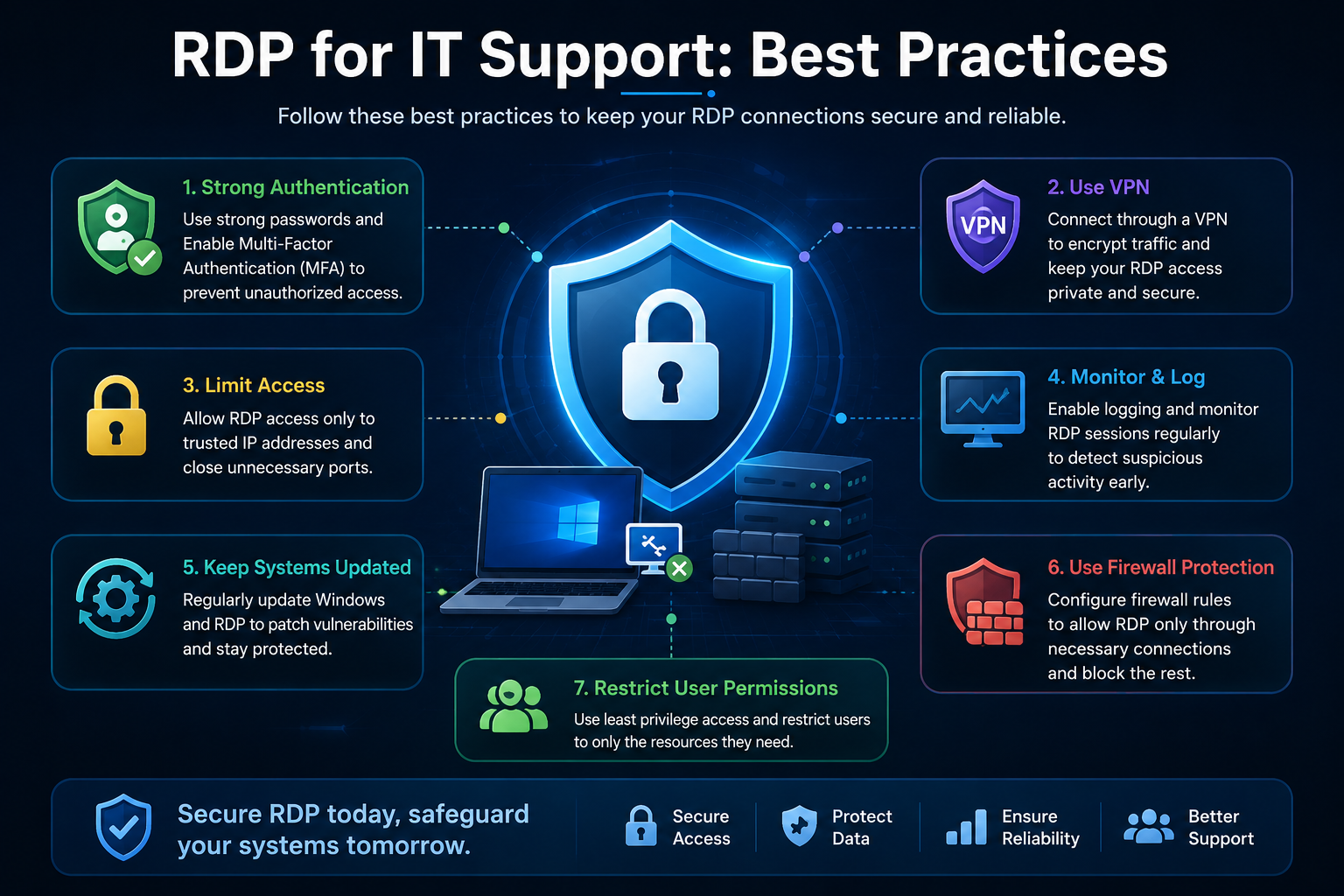
The convenience of RDP should never come at the expense of security. Organizations should treat remote access as an important part of their security architecture.
Use Strong and Unique Passwords
Weak or reused passwords can make accounts easier to compromise.
Every account with remote access should use a strong, unique password. Organizations should also avoid sharing administrator credentials among multiple employees.
Where appropriate, businesses should use centralized identity and access-management controls so that accounts can be created, modified, and disabled according to established procedures.
Enable Multi-Factor Authentication Where Possible
Multi-factor authentication (MFA) adds another verification layer beyond a password.
Depending on the organization’s infrastructure, MFA can require a user to provide an additional authentication factor, such as an approval or security token.
Even if a password is compromised, an additional authentication factor can provide another barrier against unauthorized access.
Restrict RDP Access
Not every employee needs RDP access.
Organizations should identify which users actually require remote desktop access and restrict access to those accounts. Access should also be limited to appropriate systems and networks.
Avoid treating remote access as something that should automatically be available to everyone.
Use a VPN or Secure Access Gateway
Businesses should carefully consider whether RDP needs to be directly reachable from the public internet.
A VPN or secure access gateway can provide an additional security layer between users and internal systems. Organizations may also use modern identity-aware remote-access technologies depending on their infrastructure.
The objective is to make remote access available to authorized users without unnecessarily exposing internal systems.
Keep Windows and RDP Systems Updated
Security vulnerabilities can affect operating systems, applications, and remote-access components.
Regularly installing security updates and maintaining supported Windows versions is therefore an essential part of RDP best practices.
Businesses should establish a patch-management process rather than relying on occasional manual updates.
Use Network-Level Authentication (NLA)
Network-Level Authentication (NLA) requires authentication before a full remote desktop session is established.
When supported by the environment, NLA provides an additional security measure and can reduce exposure to certain types of unauthorized connection attempts.
Organizations should keep NLA enabled unless there is a documented compatibility or operational reason not to use it.
Disable RDP When It Is Not Needed
If a computer or server does not require remote desktop access, there is little reason to leave the service enabled indefinitely.
Disabling unnecessary remote access reduces the available attack surface and can simplify security management.
For temporary support requirements, organizations can consider controlled access procedures that allow remote access only when needed.
Monitor Logs and Remote Sessions
Security does not end when RDP is enabled securely.
Organizations should monitor authentication events, failed login attempts, successful remote sessions, and other relevant security logs.
Unusual activity—such as unexpected login attempts, unfamiliar access patterns, or activity outside normal working hours—may deserve investigation.
Centralized logging and alerting can make this process easier for larger organizations and MSPs.
Follow the Principle of Least Privilege
The principle of least privilege means users receive only the permissions they need to perform their responsibilities.
For example, a technician who only needs to troubleshoot an application may not need unrestricted administrator privileges.
Separating standard and administrative accounts where practical can reduce the potential impact of a compromised account or accidental configuration change.
Back Up Important Data
Remote maintenance can involve configuration changes, software updates, or other administrative actions.
Before significant changes, businesses should ensure important data and systems are protected by reliable backups.
Backups should be tested periodically rather than simply assumed to work. A backup that cannot be restored when needed provides little practical protection.
Common RDP Security Risks
RDP can be useful, but organizations need to understand its security risks.
Brute-Force Attacks
Attackers may attempt repeated authentication attempts against exposed remote-access services.
Strong passwords, MFA where supported, access restrictions, account protections, monitoring, and appropriate network controls can reduce this risk.
Stolen Credentials
If an employee’s username and password are compromised through phishing, malware, password reuse, or another method, an attacker may attempt to use those credentials for unauthorized access.
This is one reason organizations should combine strong authentication with access restrictions and monitoring.
Unauthorized Access
Poorly managed accounts can leave former employees, unnecessary users, or unauthorized personnel with access to systems.
Organizations should regularly review who has remote access and remove permissions that are no longer required.
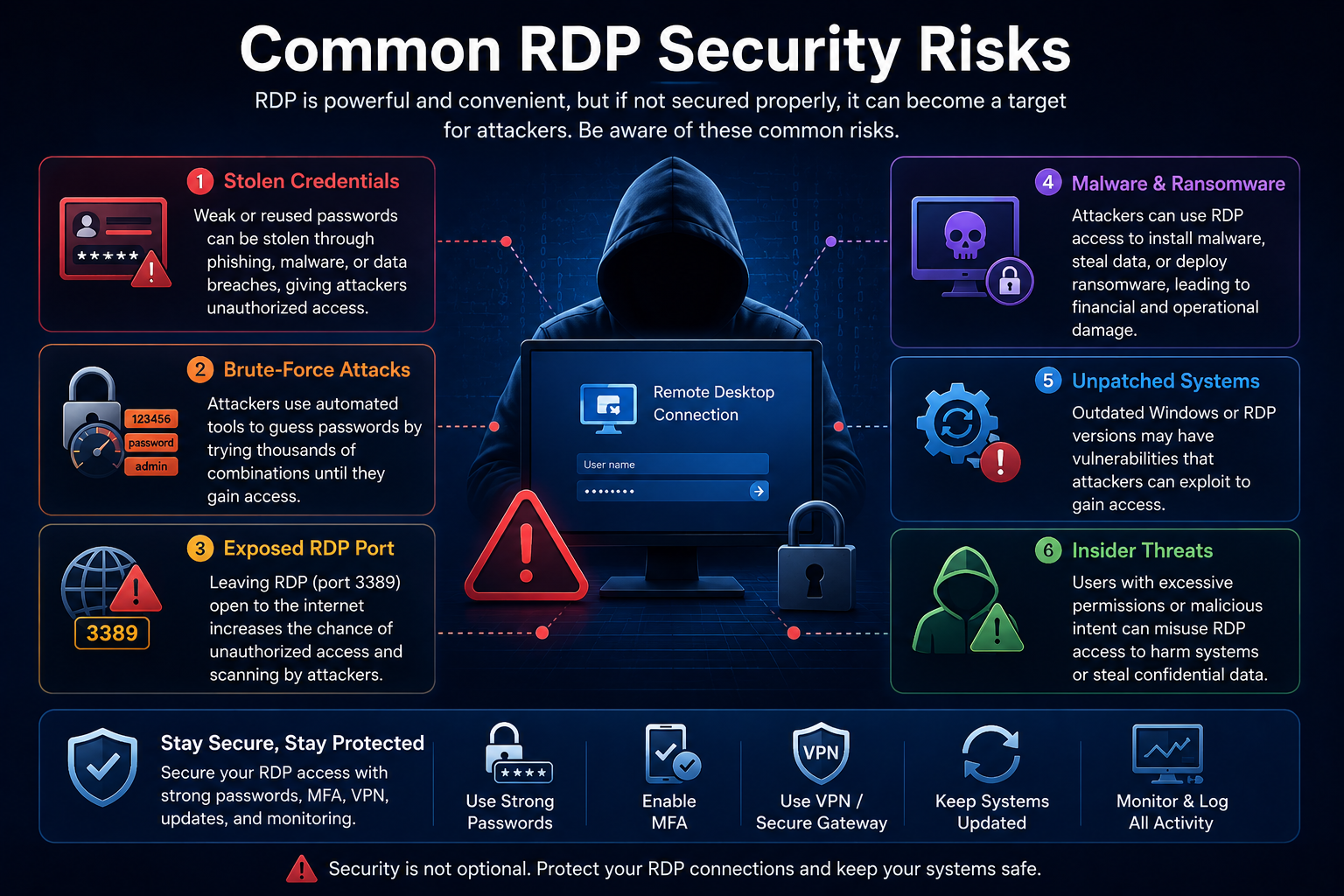
Unpatched Vulnerabilities
Outdated operating systems and remote-access components may contain known security vulnerabilities.
A consistent patch-management process is therefore essential for secure RDP environments.
Exposed RDP Ports
Directly exposing remote desktop services to the public internet can increase an organization’s attack surface.
Businesses should carefully design remote-access architecture and consider VPNs, secure gateways, network restrictions, and other controls rather than assuming that a password alone is sufficient.
Malware and Ransomware Risks
If an attacker gains unauthorized access to a Windows system, the compromised machine may potentially become part of a larger malware or ransomware incident.
Strong authentication, least privilege, endpoint protection, network segmentation, backups, patching, and monitoring all contribute to reducing the potential impact.
Poor Access Control
Excessive permissions can turn a small account compromise into a much larger security problem.
Organizations should regularly review RDP permissions and ensure that users have access only to the systems and resources required for their roles.
How to Improve RDP Performance for IT Support
Security is the priority, but performance also affects the remote-support experience.
A slow RDP session can make troubleshooting frustrating for both the technician and the user.
Consider the following legitimate performance improvements:
- Use a stable and sufficiently fast internet connection.
- Reduce unnecessary visual effects when appropriate.
- Optimize display resolution and other visual settings for the available bandwidth.
- Close applications that are not required during the support session.
- Keep the remote computer properly maintained.
- Monitor CPU, RAM, disk, and network usage.
- Investigate high resource consumption instead of assuming RDP itself is the problem.
- Keep Windows and important applications maintained and updated.
- Minimize unnecessary background processes where appropriate.
For organizations with many remote users, network architecture and server capacity should also be considered when planning remote desktop deployments.
RDP vs Other Remote Support Solutions
RDP is not the only option for remote IT support.
RDP With VPN-Based Remote Access
A VPN can provide secure network connectivity before the user connects to an internal Windows system through RDP.
This approach can be useful for organizations that already have established VPN infrastructure and need controlled access to internal resources.
Remote Support Software
Dedicated remote-support applications often provide features designed specifically for technical assistance, such as attended support sessions, screen sharing, session management, and administrative controls.
These tools may be more convenient when technicians need to assist users interactively rather than administer a Windows server.
VNC
VNC (Virtual Network Computing) is another remote-access technology that can provide graphical access to computers.
Its capabilities, security features, performance, and platform support vary depending on the specific implementation.
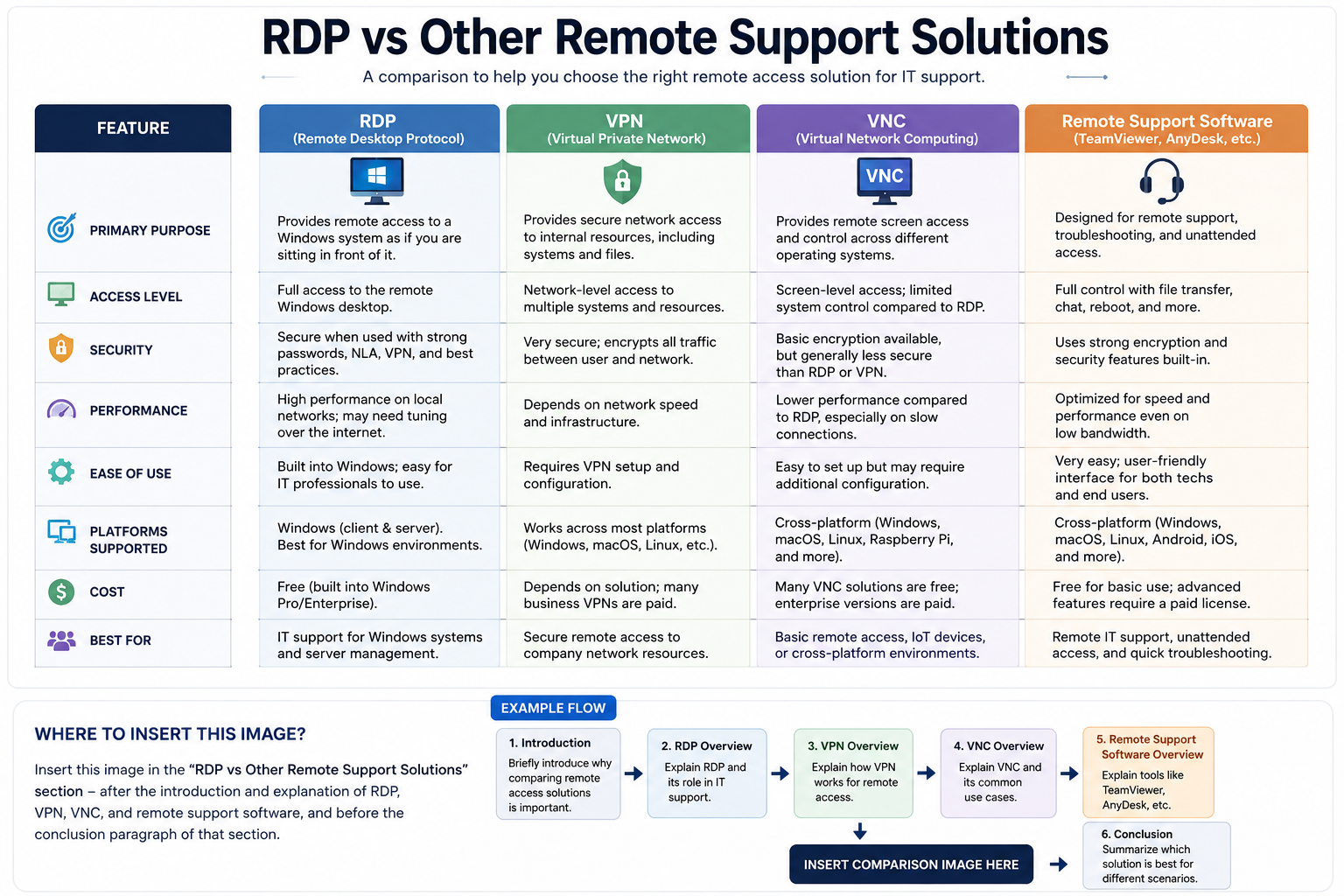
The right solution depends on the organization’s infrastructure, security requirements, operating systems, user needs, compliance obligations, and support workflow.
When Should Businesses Use RDP for IT Support?
RDP can be a strong option when an organization primarily manages Windows computers or servers and needs controlled remote administrative access.
It may be particularly suitable for:
- Windows server administration
- Internal IT troubleshooting
- Remote maintenance
- Supporting distributed offices
- Managing Windows-based business systems
- Organizations with established identity and network-security infrastructure
However, another remote-support solution may be more appropriate when technicians need highly interactive attended support, broad cross-platform compatibility, simplified customer assistance, or specialized collaboration features.
The decision should not be based solely on convenience. Businesses should evaluate security, access control, user experience, compliance requirements, infrastructure, cost, and support needs.
Frequently Asked Questions About RDP for IT Support
What is RDP used for in IT support?
RDP is used to remotely access authorized Windows computers and servers. IT professionals can use it for troubleshooting, configuration, software maintenance, system administration, and other technical support tasks.
Is RDP safe for remote IT support?
RDP can be used safely when it is properly secured, but no remote-access technology should be treated as automatically risk-free. Strong authentication, restricted access, updates, monitoring, NLA, least privilege, and appropriate network controls are important.
How can I secure RDP?
Start by using strong unique passwords, MFA where possible, restricted access, secure network pathways such as VPNs or gateways, NLA, regular patching, monitoring, least privilege, and reliable backups.
Does RDP require a VPN?
No. RDP does not inherently require a VPN. However, many organizations use VPNs or other secure access mechanisms as part of their remote-access architecture rather than unnecessarily exposing RDP services to the public internet.
Can RDP be used to manage Windows servers?
Yes. RDP is commonly used for authorized remote administration of Windows Server systems. Administrators can perform many graphical management and troubleshooting tasks remotely.
What is NLA in RDP?
Network-Level Authentication is a security feature that authenticates a user before establishing a full remote desktop session. It provides an additional security layer and should generally remain enabled when supported.
What is the difference between RDP and remote support software?
RDP is a Microsoft remote desktop protocol primarily designed for remote access to Windows environments. Dedicated remote-support software is often designed around technical assistance workflows and may offer additional features such as attended sessions, screen sharing, session controls, and broader platform support.
Conclusion
RDP for IT Support can make technical assistance faster, more flexible, and more efficient. IT professionals can remotely troubleshoot computers, manage Windows servers, install software, investigate performance problems, support remote employees, and perform routine maintenance without being physically present.
The biggest benefits include faster troubleshooting, reduced downtime, lower support costs, improved IT productivity, easier server management, and centralized technical assistance.
However, convenience should never replace security. Poorly protected remote access can create significant risks, particularly when credentials are weak, systems are outdated, access is excessive, or remote services are unnecessarily exposed.
Businesses using RDP should therefore follow practical RDP best practices: use strong authentication, enable MFA where possible, restrict access, consider VPNs or secure gateways, keep systems patched, use Network-Level Authentication, monitor remote sessions, apply least privilege, and maintain reliable backups.
The practical takeaway is simple: RDP is most valuable when it is treated as a controlled IT-management tool rather than an unrestricted remote-access service. With the right security architecture and management practices, organizations can use remote desktop technology to deliver effective and responsive IT support while keeping unnecessary risks under control.