
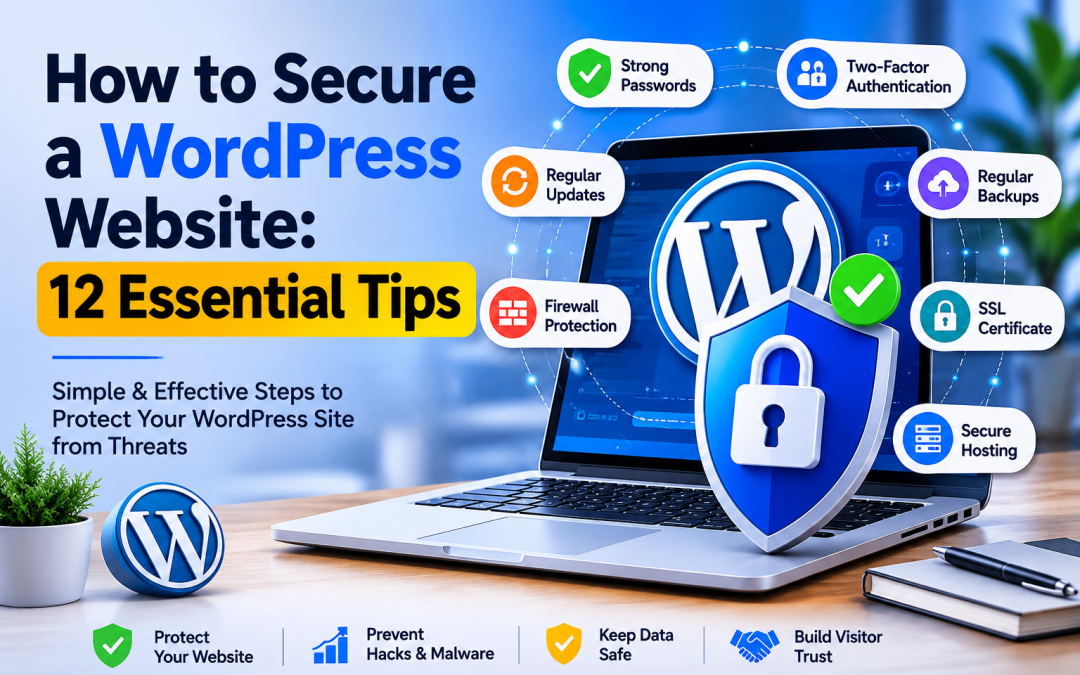
How to Secure a WordPress Website: 12 Essential Security Steps for Beginners
Your WordPress website may look perfectly normal to you, but that does not mean it is automatically protected from security threats. Automated bots can constantly scan websites for weak passwords, outdated software, vulnerable plugins, and other weaknesses. A successful attack can result in malware, unauthorized access, unwanted redirects, spam, data loss, or even downtime.
The good news is that learning how to secure a WordPress website does not require advanced cybersecurity knowledge. Even beginners can follow a few practical security measures to reduce common risks and protect their website.
If you are a blogger, freelancer, small business owner, or beginner managing your first website, there are several practical steps you can take to reduce common risks. Keeping your software updated, using strong passwords, enabling two-factor authentication, creating reliable backups, and choosing secure hosting can make a significant difference.
In this guide, we will explain how to secure a WordPress website using 12 beginner-friendly security steps. You will learn what each measure does, why it matters, and how to incorporate it into your regular website maintenance routine.
Remember, no security measure can guarantee that a website will never be attacked. The goal is to reduce unnecessary risks and make your website more resilient.
Why WordPress Website Security Matters
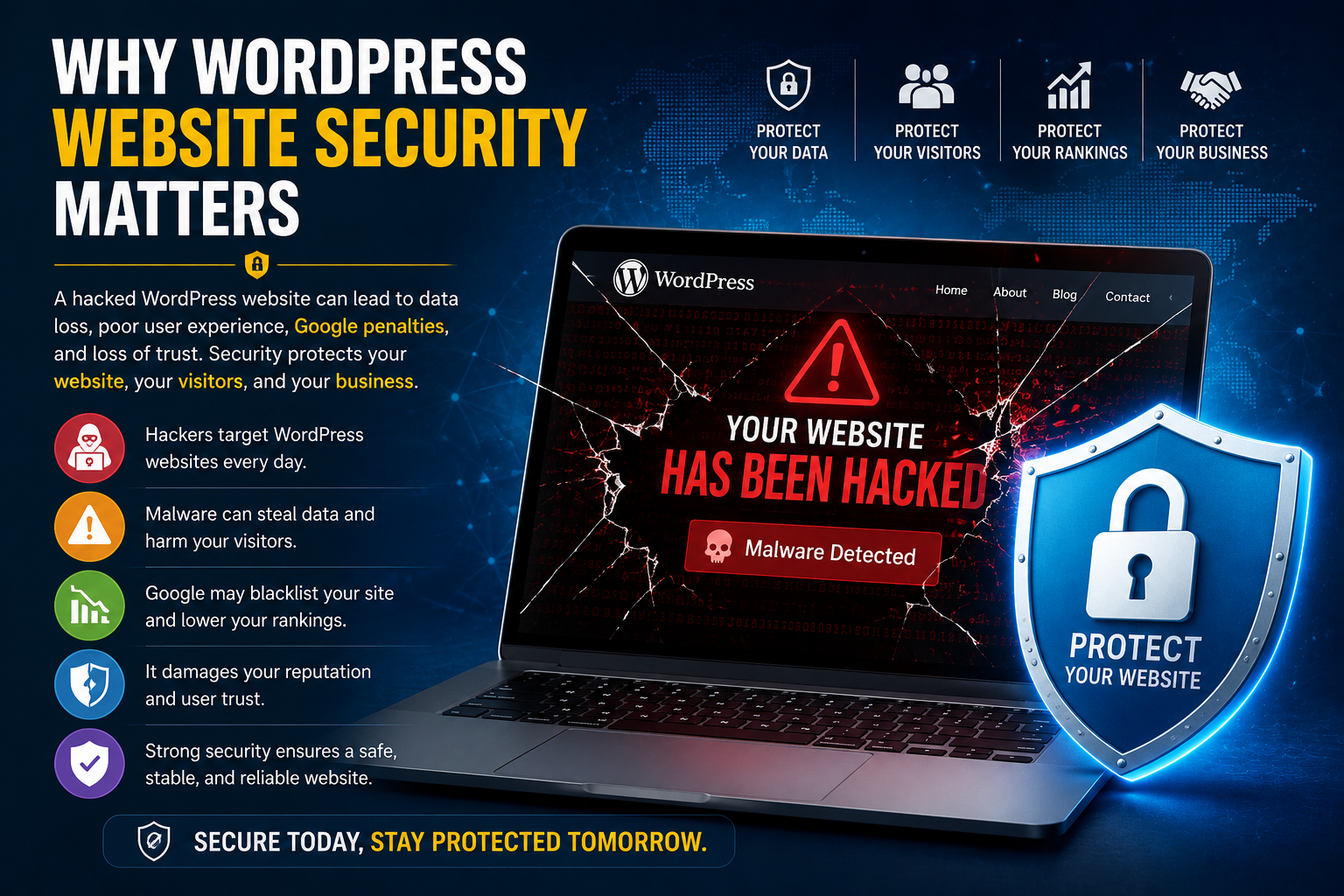
WordPress website security helps protect your data, visitors, search rankings, and business from common security threats.
Website security is important whether you run a personal blog or a business website.
When a WordPress website is compromised, attackers may gain unauthorized access to administrator accounts, upload malicious files, change website content, create unwanted users, or redirect visitors to suspicious websites.
Depending on the type of attack, you could experience:
- Malware infections
- Unauthorized administrator access
- Website defacement
- Spam pages or posts
- Data theft
- SEO damage
- Loss of visitor trust
- Business or revenue disruption
- Website downtime
A hacked website can also take considerable time and effort to clean. If important files or databases are damaged, recovering the website may become even more difficult.
This is why prevention is generally better than waiting until something goes wrong. Good WordPress security is not about installing one plugin and forgetting about your website. It is an ongoing process involving software updates, account management, backups, monitoring, and secure hosting.
Common WordPress Security Risks
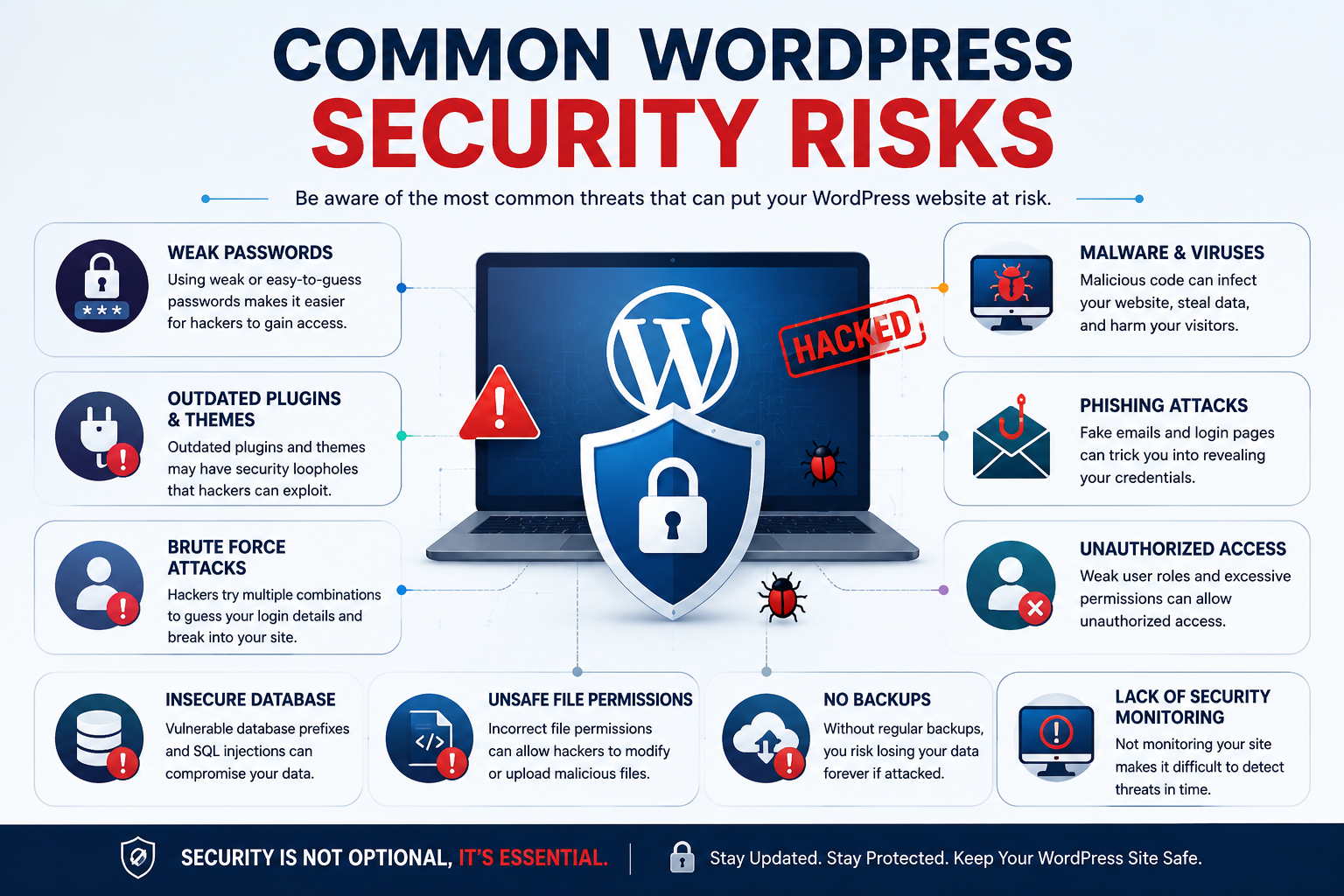
Before learning how to protect WordPress website installations, it helps to understand the most common risks.
Some of the issues beginners frequently encounter include:
- Weak or reused passwords
- Brute-force login attempts
- Outdated WordPress software
- Outdated plugins and themes
- Vulnerable plugins
- Malware
- Phishing attempts
- Poorly secured hosting environments
- Missing or unreliable backups
- Unnecessary administrator accounts
- Insecure website configurations
You do not need to understand every technical detail behind these attacks. The important thing is to recognize that small security weaknesses can sometimes create opportunities for attackers.
The following 12 steps provide a practical starting point.
12 Essential Steps to Secure a WordPress Website
1. Keep WordPress Core Updated
One of the simplest WordPress security best practices is keeping WordPress up to date.
WordPress releases updates for different reasons, including improvements, bug fixes, new features, and security fixes. Running an outdated version can leave your website exposed to vulnerabilities that may already have been addressed in a newer release.
To check for available updates, log in to your WordPress dashboard and look for the Updates section. Review available updates for the WordPress core as well as plugins and themes.
Before applying significant updates, especially on an important business website, make sure you have a recent backup.
Do not update WordPress only when you notice a problem. Make updates part of your regular website maintenance routine.
Beginner tip: Keep WordPress core, plugins, and themes updated rather than focusing on only one of them.
2. Use Strong and Unique Passwords
Passwords are one of the first lines of defense for your WordPress website.
A weak password can make it easier for attackers to guess or compromise an account through automated login attempts. Reusing the same password across multiple websites can also increase your risk because a password exposed somewhere else could potentially be used against your WordPress account.
A strong password should be long, difficult to guess, and unique to that account. Avoid obvious information such as names, birthdays, business names, or common words.
For example, a password such as admin123 is extremely weak. Instead of copying a specific password from an article, use a password manager to generate and store a unique password for your WordPress account.
Administrator accounts deserve particular attention because they usually have extensive control over the website.
Avoid: sharing administrator passwords with multiple people or storing them in unsecured documents.
3. Enable Two-Factor Authentication
Two-factor authentication, commonly called 2FA, adds another layer of protection to your login process.
Normally, logging in requires a username and password. With 2FA enabled, you also need another verification method, such as a code generated by an authentication app or another supported authentication mechanism.
This means that knowing your password alone may not be enough to access the account.
Two-factor authentication is especially valuable for administrator accounts because they have greater permissions than ordinary user accounts.
Depending on your WordPress setup, you can enable 2FA through a reputable security solution or another supported authentication tool.
After enabling it, test the login process and make sure you understand how recovery works before relying on it.
WordPress security tip: Start with your most privileged accounts and make sure every administrator has appropriate login protection.
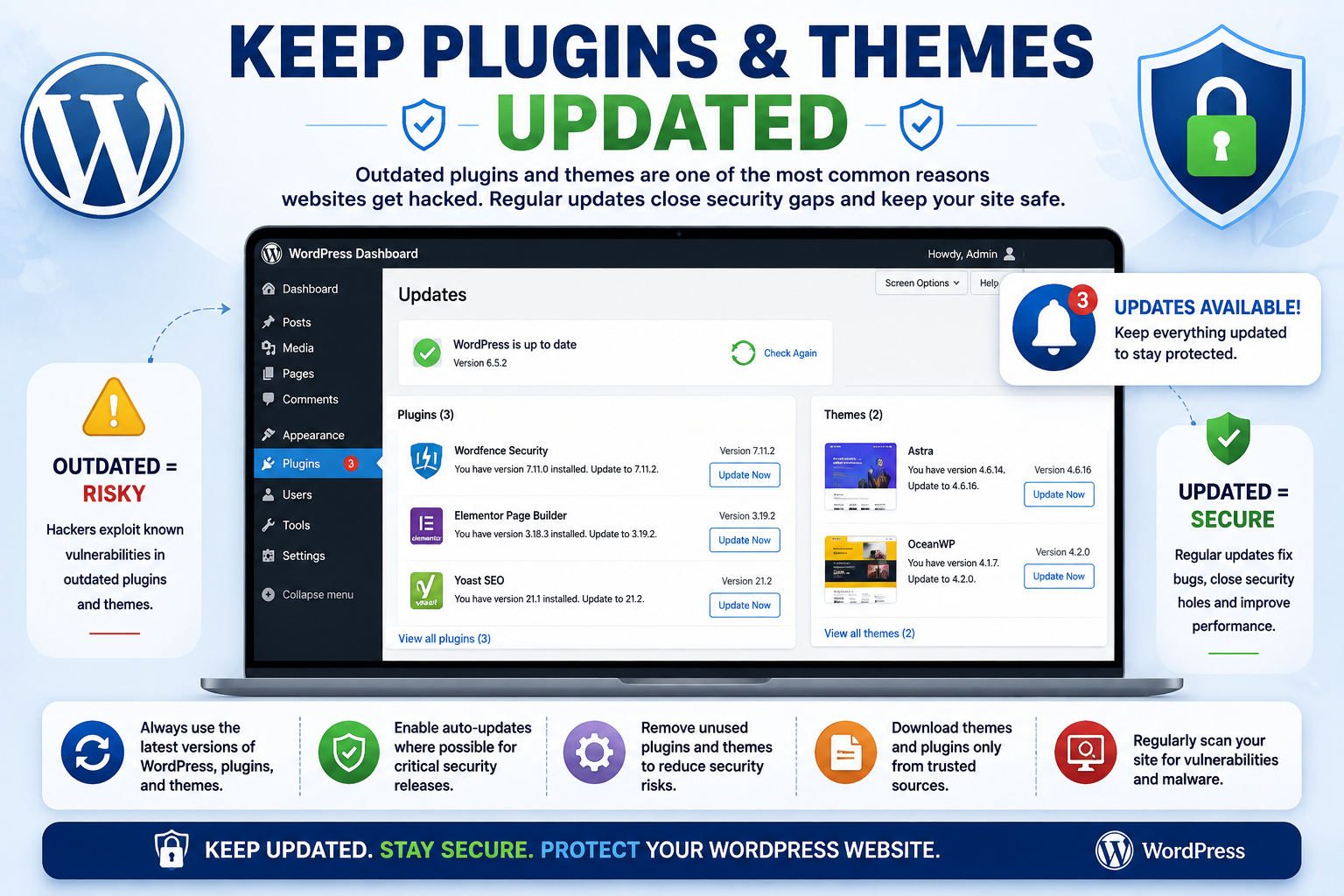
4. Keep Plugins and Themes Updated
Plugins and themes add functionality and design options to WordPress, but they also need regular maintenance.
An outdated plugin or theme can potentially contain a known security vulnerability. That is why updating them is an important part of WordPress website protection.
Go to your WordPress dashboard regularly and check for plugin and theme updates. Remove plugins that you no longer use instead of leaving them installed unnecessarily.
You should also remove unused themes, particularly if they are no longer maintained.
Most importantly, avoid downloading nulled or pirated plugins and themes. These files may contain malicious code or other unwanted modifications.
Download WordPress extensions from reputable sources and check whether they are actively maintained before installing them.
Remember: More plugins do not automatically mean a better website. Install only what you actually need and keep those components maintained.
5. Install a Reputable WordPress Security Plugin
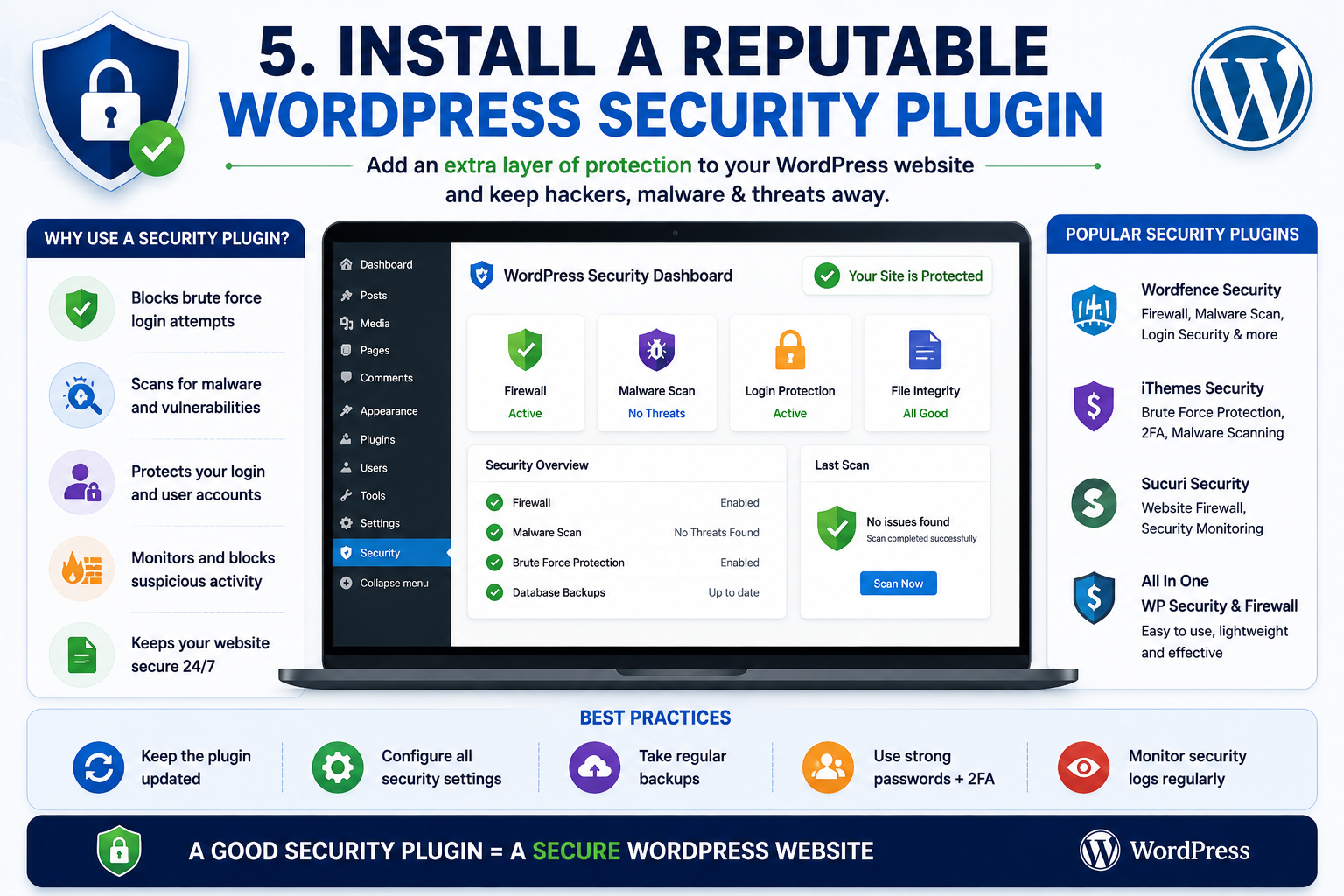
A reputable WordPress security plugin can provide another layer of protection.
Depending on the solution, security plugins may offer features such as:
- Firewall protection
- Malware scanning
- Login protection
- Security notifications
- Suspicious activity monitoring
- Login attempt controls
Popular WordPress security solutions include tools such as Wordfence, Solid Security, and Sucuri, among others. The right choice depends on your website, hosting environment, technical requirements, and the features you actually need.
However, a security plugin should not be treated as a complete security strategy.
For example, a security plugin cannot compensate for an administrator using a weak password, ignoring updates, or failing to maintain backups.
Choose a reputable solution, configure it properly, and understand what it actually protects.
Avoid installing several security plugins simply because you think more plugins automatically mean more security. Multiple tools can sometimes create unnecessary complexity or configuration conflicts.
6. Use SSL and HTTPS
If your website still uses an unsecured HTTP connection, moving to HTTPS should be a priority.
An SSL/TLS certificate enables encrypted communication between a visitor’s browser and your website. When HTTPS is properly configured, information transmitted between the browser and server is better protected from interception while in transit.
HTTPS is particularly important for websites that handle login credentials, forms, customer information, or other sensitive data.
You can usually check whether your website uses HTTPS by looking at the address bar in your browser. Your website should load using an https:// address, and the browser should indicate that the connection is secure.
However, there is an important distinction to remember:
HTTPS does not make your entire website secure.
It protects data in transit, but it does not prevent every type of malware infection, vulnerable plugin, weak password, or compromised administrator account.
Think of HTTPS as one important part of a larger WordPress security strategy.
7. Create Regular WordPress Backups
Backups are among the most valuable protections you can have.
If your website is hacked, accidentally damaged, or affected by a technical problem, a reliable backup can help you recover.
A complete WordPress backup may include:
- The WordPress database
- Website files
- Uploaded images and media
- Themes
- Plugins
- Other important website configuration files
The frequency of backups should depend on how frequently your website changes. A website that publishes new content every day may require a different backup approach from a small website that rarely changes.
It is also important to store backups separately from the live website. If an attacker compromises both the website and its only backup location, recovery becomes much more difficult.
Most importantly, test your backups.
Having a backup file is not the same as having a usable backup. A backup that cannot be restored when you need it provides limited protection.
8. Protect the WordPress Login Page
Your WordPress login page is a common target for automated attacks.
Attackers may repeatedly try usernames and passwords in an attempt to gain access. Good WordPress login security can reduce unnecessary exposure.
Start with the basics:
- Use strong, unique passwords.
- Enable two-factor authentication.
- Use login attempt protection.
- Apply rate limiting where appropriate.
- Consider CAPTCHA when it makes sense for your website.
- Avoid unnecessary administrator accounts.
Rate limiting can help control repeated requests from the same source, while login protection tools can make automated guessing more difficult.
Do not rely on outdated tricks simply because they are frequently recommended online. For example, changing a login URL alone should not be considered a complete security solution.
A layered approach is more useful: strong credentials, 2FA, login protection, updates, monitoring, and secure hosting should work together.
9. Use Secure WordPress Hosting
Your hosting environment is another important part of website security.
A secure hosting provider can offer server-level protections that are difficult for an individual website owner to manage alone. Depending on the hosting environment, these may include server updates, firewalls, malware monitoring, backups, account isolation, and security support.
When evaluating WordPress hosting, look beyond the advertised storage or bandwidth. Consider how the provider approaches security and whether support is available when you experience a problem.
Reliable hosting can reduce certain risks, but hosting alone cannot secure every WordPress website. You still need to maintain your WordPress installation, plugins, themes, user accounts, passwords, and backups.
For GORDP’s hosting-focused audience, this is especially important: website security starts with a strong foundation, and the hosting environment is part of that foundation.
10. Remove Unused Plugins, Themes, and User Accounts
Every unnecessary component on your website can increase the number of things you need to maintain.
If you are no longer using a plugin, delete it rather than simply leaving it inactive. The same principle applies to unused themes.
You should also regularly review WordPress user accounts.
Remove administrator accounts that are no longer needed, and make sure existing users have only the permissions required for their work.
This is known as the principle of least privilege.
In simple terms, people should have enough access to perform their tasks but not more access than necessary.
For example, someone who only needs to write blog posts may not need administrator-level access.
Review user accounts periodically and remove old accounts belonging to former team members, freelancers, or contractors.
11. Monitor Your Website for Suspicious Activity
Security is not only about preventing attacks. You also need to notice unusual activity when it happens.
Regularly monitor your website for signs such as:
- Unexpected administrator accounts
- Unknown files
- Sudden redirects
- Unusual login activity
- Unexpected content changes
- Browser or website security warnings
- Unusual traffic patterns
- Search engine warnings
A sudden change to your website can be a warning sign. For example, if your homepage unexpectedly redirects visitors somewhere else or unknown content appears in your dashboard, investigate rather than ignoring it.
If you notice suspicious activity, avoid making random changes that could destroy useful evidence or make recovery more complicated.
Depending on the situation, you may need to temporarily take the website offline, preserve available logs, scan for malware, restore a known-clean backup, or contact your hosting provider.
For serious compromises, professional WordPress security assistance may be the safest option.
12. Use a Security Checklist and Perform Regular Audits
WordPress security is not a one-time task.
A website that is secure today can become vulnerable later if plugins become outdated, passwords are shared, new users receive excessive permissions, or backups stop working.
Create a simple security checklist and review it regularly.
Your checklist can include:
- WordPress core updates
- Plugin and theme updates
- Strong passwords
- Two-factor authentication
- Regular backups
- Security scanning
- HTTPS
- User account reviews
- Removal of unused plugins and themes
- Hosting security
- Login monitoring
The goal is consistency.
Instead of waiting for a security problem, make website security part of your normal maintenance routine.
Bonus: WordPress Security Mistakes Beginners Should Avoid
If you are learning how to secure a WordPress website, it is important to avoid common mistakes that can create security problems.
Here are some common mistakes to avoid:
Using weak passwords: Simple passwords make accounts easier to target. Always use strong and unique credentials.
Installing pirated plugins or themes: Nulled software can contain malicious code and should be avoided.
Ignoring updates: Leaving WordPress, plugins, or themes outdated can increase security risks.
Installing too many plugins: Every additional plugin needs maintenance. Use only reputable plugins that your website actually requires.
Keeping unused administrator accounts: Old accounts can become unnecessary security risks. Remove them when they are no longer needed.
Not creating backups: Without a reliable backup, recovery can become much harder after a serious problem.
Assuming SSL provides complete security: HTTPS protects data in transit, but it does not stop every type of website attack.
Installing multiple security plugins without understanding them: More security tools do not necessarily mean better protection. Configuration conflicts and unnecessary complexity can create new problems.
Ignoring security alerts: Warnings about outdated software, suspicious activity, or compromised credentials should not simply be dismissed.
What to Do If Your WordPress Website Gets Hacked
Discovering that your WordPress website has been hacked can be stressful, but acting carefully is important.
Start by staying calm and avoiding random changes. Depending on the situation, your first steps may include:
- Contact your hosting provider if appropriate and explain what you have noticed.
- Change compromised passwords using a trusted device, particularly for administrator and hosting accounts.
- Check administrator accounts for unfamiliar users.
- Scan the website for malware using an appropriate security solution.
- Review suspicious files and available activity logs.
- Restore from a known-clean backup if a reliable backup is available.
- Update WordPress, plugins, and themes after addressing the compromise.
- Identify the original vulnerability so the same problem does not happen again.
- Review all connected accounts and credentials that could have been exposed.
- Seek professional assistance if the infection is extensive or you are unsure how to clean the website safely.
The correct recovery process depends on the type and extent of the compromise. A simple restoration may not be enough if an attacker still has access through a compromised account or vulnerable component.
WordPress Security Checklist for Beginners
| Security Task | How Often |
|---|---|
| Check WordPress updates | Regularly |
| Update plugins and themes | Regularly |
| Review user accounts | Periodically |
| Check backups | Regularly |
| Test backup restoration | Periodically |
| Review security alerts | Regularly |
| Scan for malware | Periodically |
| Review hosting security | Periodically |
| Check HTTPS | Periodically |
| Review login activity | Regularly |
The exact frequency should depend on how often your website changes, how important it is to your business, and the security tools available in your hosting environment.
Frequently Asked Questions
Is WordPress secure for websites?
Yes, WordPress can be used securely, but security also depends on how the website is managed. Keeping WordPress and its plugins updated, using strong passwords, enabling 2FA, maintaining backups, choosing secure hosting, and monitoring the website can reduce common risks. No website platform or security measure can guarantee complete protection from every possible attack.
How can I secure my WordPress website for free?
You can improve WordPress security without spending money by using strong unique passwords, keeping WordPress and plugins updated, removing unused components, limiting administrator accounts, enabling available security features, and maintaining reliable backups. Depending on your hosting provider, HTTPS and certain security features may also be available without an additional charge.
Do I need a WordPress security plugin?
A security plugin can provide useful features such as malware scanning, firewall protection, login security, and activity monitoring. However, it is not mandatory for every website and should not replace basic security practices. If you use one, choose a reputable solution and understand its features and configuration instead of assuming the plugin will handle every security issue automatically.
How often should I back up my WordPress website?
The appropriate backup frequency depends on how frequently your website changes. A frequently updated blog or online business may need backups more often than a simple website that rarely changes. More important than choosing a universal schedule is ensuring that backups are reliable, stored separately from the live website, and tested periodically to confirm that restoration actually works.
Does SSL make a WordPress website secure?
SSL/TLS and HTTPS protect information while it travels between a visitor’s browser and the website. However, HTTPS does not prevent malware, weak passwords, vulnerable plugins, unauthorized accounts, or every other type of attack. It should therefore be considered one part of a broader WordPress website security strategy rather than complete protection.
Can WordPress websites be hacked?
Yes. Like any popular website platform, WordPress websites can be targeted by attackers. Common risks include weak passwords, outdated software, vulnerable plugins, compromised accounts, malware, and insecure hosting environments. Good security practices can significantly reduce unnecessary risks, but they cannot guarantee that a website will never be attacked.
Are outdated plugins dangerous?
Outdated plugins can become a security concern, particularly when a known vulnerability exists in an older version. This is why plugins should be kept updated and unnecessary plugins should be removed. Website owners should also avoid untrusted or pirated plugins and choose extensions from reputable sources that are actively maintained.
What should I do if my WordPress website is hacked?
Do not immediately start deleting files or making random changes. Contact your hosting provider when appropriate, change compromised credentials from a trusted device, review administrator accounts, scan for malware, investigate suspicious activity, and restore from a known-clean backup if available. If the compromise is serious or you cannot identify the cause, seek help from a WordPress security professional.
Conclusion
Learning how to secure a WordPress website does not require advanced cybersecurity knowledge. The most important improvements often come from consistent, basic security practices.
Keep WordPress, plugins, and themes updated. Use strong and unique passwords, protect administrator accounts with two-factor authentication, and remove unnecessary users and software. Enable HTTPS, create reliable backups, use reputable security tools when appropriate, and choose hosting with security features that support your website’s needs.
Most importantly, remember that WordPress security is an ongoing process. A website should be monitored and reviewed regularly rather than secured once and forgotten.
If you are building or managing a WordPress website, your hosting environment is an important part of that security strategy. GORDP can be a useful starting point for website owners who want to explore hosting and related services while building a stronger foundation for their WordPress websites.
A few simple security habits today can make website management much easier when problems arise tomorrow.